Read an administrative session assessment
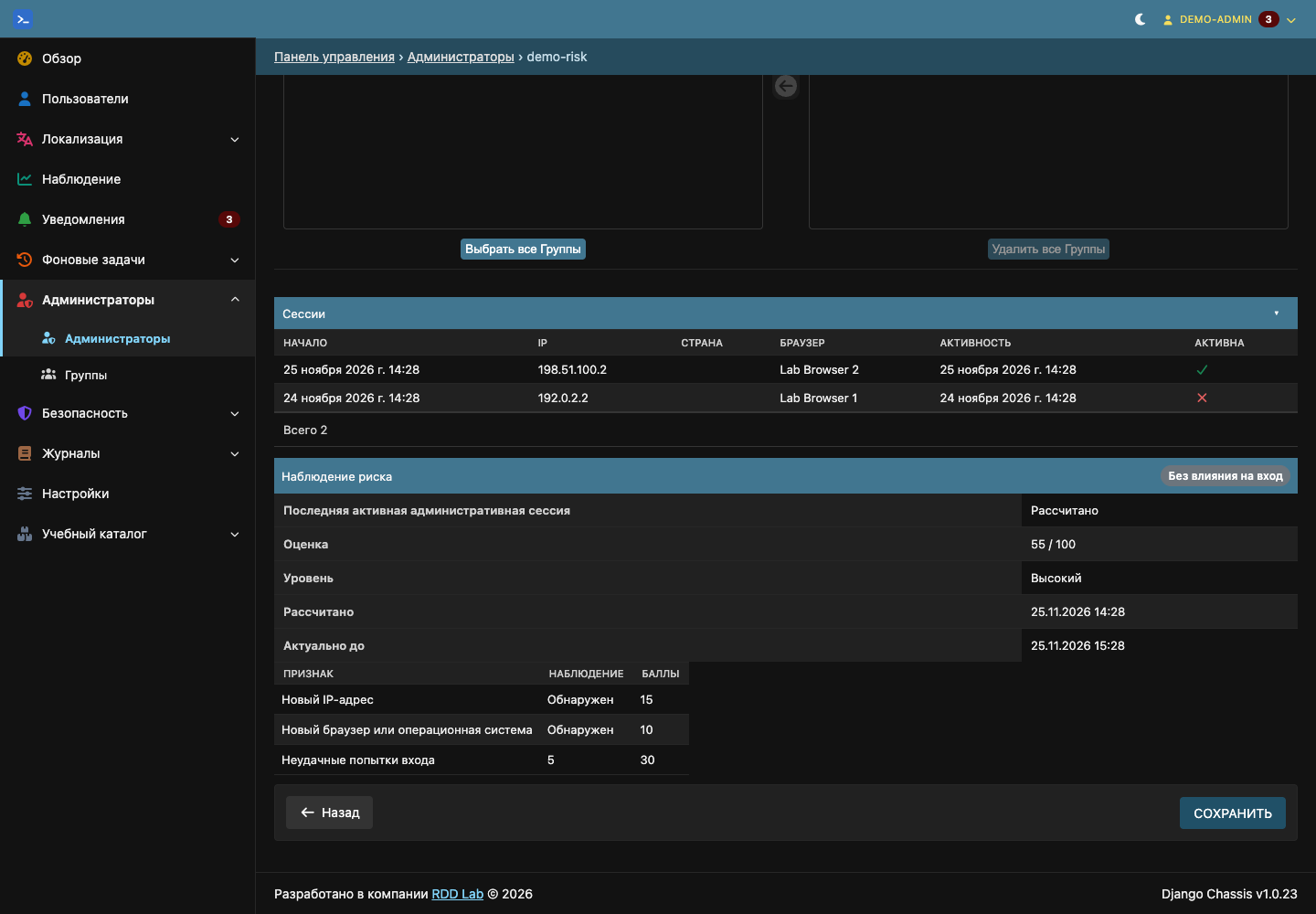
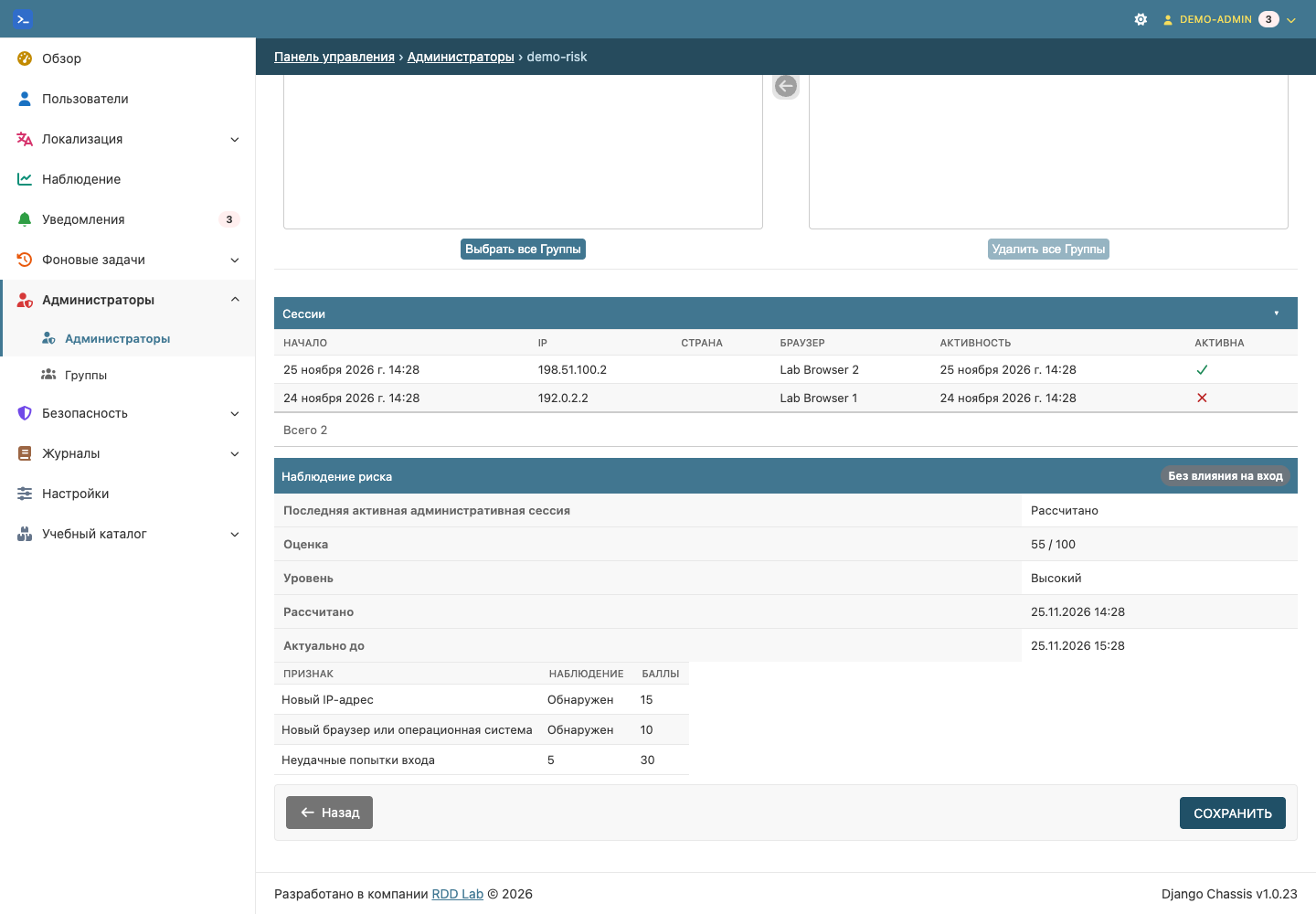
Drag the divider or use the arrow keys to compare themes.
Django Chassis 1.0.23 · training site with Russian UI
- Open the account card and scroll below the sessions.
- The demo assessment shows the level, number of points and freshness period.
- Each signal row explains the observation and its contribution.
How to add it
Install Django-GC 1.1.6 or newer, Celery and django-celery-beat, with django_gc and django_celery_beat in INSTALLED_APPS. Keep the Chassis users module (CHASSIS_USERS_MODULE_ENABLED = True) and login-attempt tracking enabled in src/server/settings/chassis.py. In src/server/settings/middlewares.py, put 'django_chassis.middlewares.UserSessionMiddleware' after authentication. In src/server/settings/global_config.py, include this provider using a free category ID.
from django_gc import ProviderDefinition

GLOBAL_CONFIG_PROVIDERS = [
    ProviderDefinition(
        provider='django_chassis.configuration.RiskConfigurationProvider',
        category_ids={'observation': 30}
    )
]
Run these commands with the same settings and database as the web process.
uv run python src/manage.py migrate
uv run python src/manage.py initialize_global_configs
uv run python src/manage.py initialize_risk_schedule
uv run python src/manage.py shell -c "from django_gc import set_typed_value; set_typed_value(key='risk.is_enabled', value=True)"
Run the project's Celery worker and database-backed beat with Chassis tasks discovered and a worker consuming the default queue. Open the Admin profile and scroll below sessions after an assessment runs on an active session. To see the block on another account's card, the operator also needs django_chassis.view_riskassessment. The seeded demo's demo-risk account illustrates a result with a prior session and three triggered signals.