Open history as the read-only operator
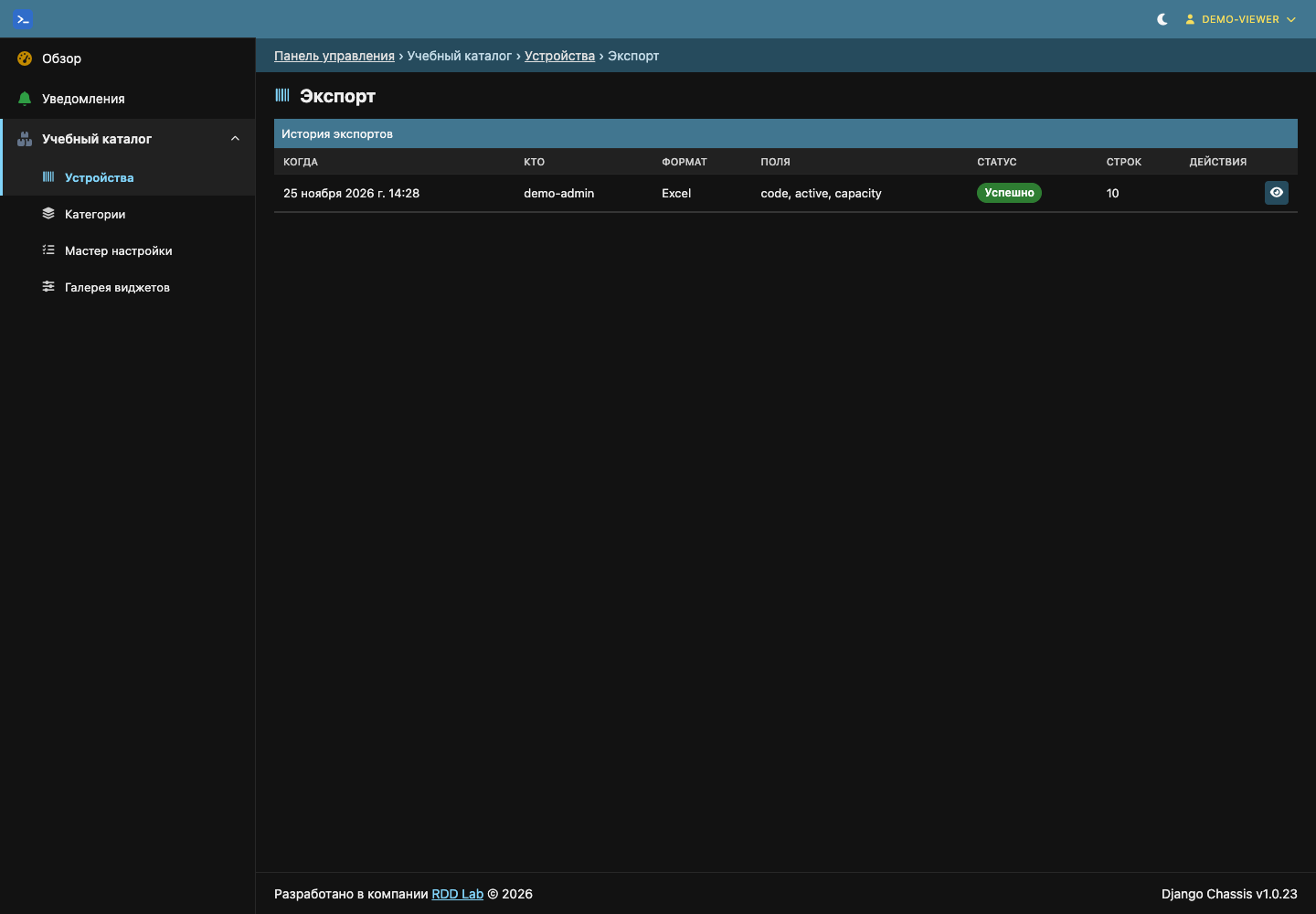
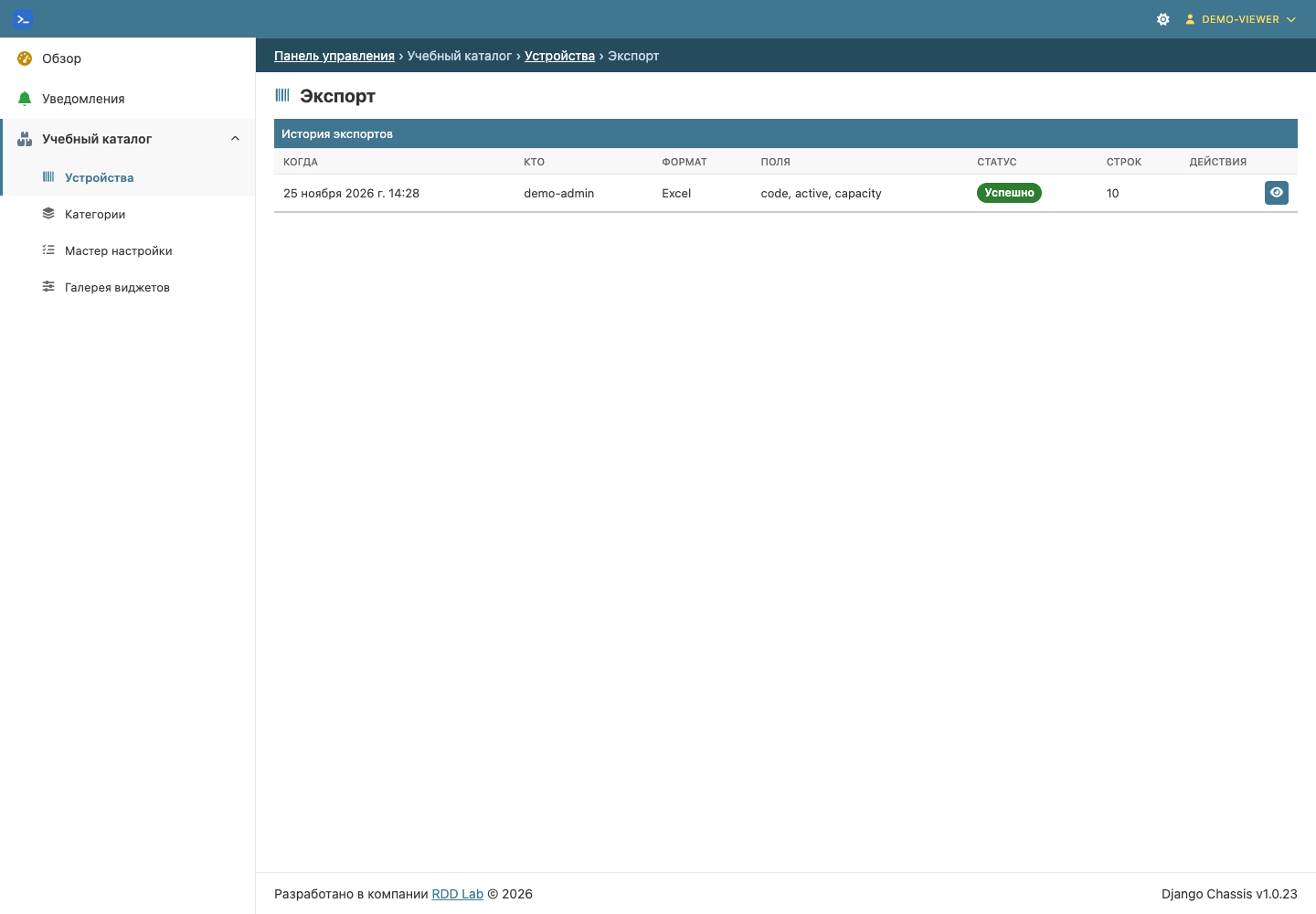
Drag the divider or use the arrow keys to compare themes.
Django Chassis 1.0.23 · training site with Russian UI
- The viewer can open the section history. The create action is hidden.
- Existing exports still appear in the table.
How to add it
In the demo, seed.py provisions demo-viewer as a staff account with grouped device and export history view grants. To create the same access for an existing active staff account in your project, add these two grants to a dedicated reader group after migrations. Run this in a Django shell with the reader's username substituted for demo-viewer.
from django.contrib.auth import get_user_model
from django.contrib.auth.models import Group, Permission

reader = get_user_model().objects.get(username='demo-viewer', is_active=True, is_staff=True, is_superuser=False)
group, _ = Group.objects.get_or_create(name='Device export readers')
group.permissions.add(*Permission.objects.filter(
    content_type__app_label='catalog_demo', content_type__model='device',
    codename__in=['view_device', 'view_device_export']
))
reader.groups.add(group)
Use a reader account whose groups only grant the intended access. After an administrator creates an export, the reader can view /admin/catalog_demo/device/export/ and gets HTTP 403 at /admin/catalog_demo/device/export/new/.