Check and map the incoming columns
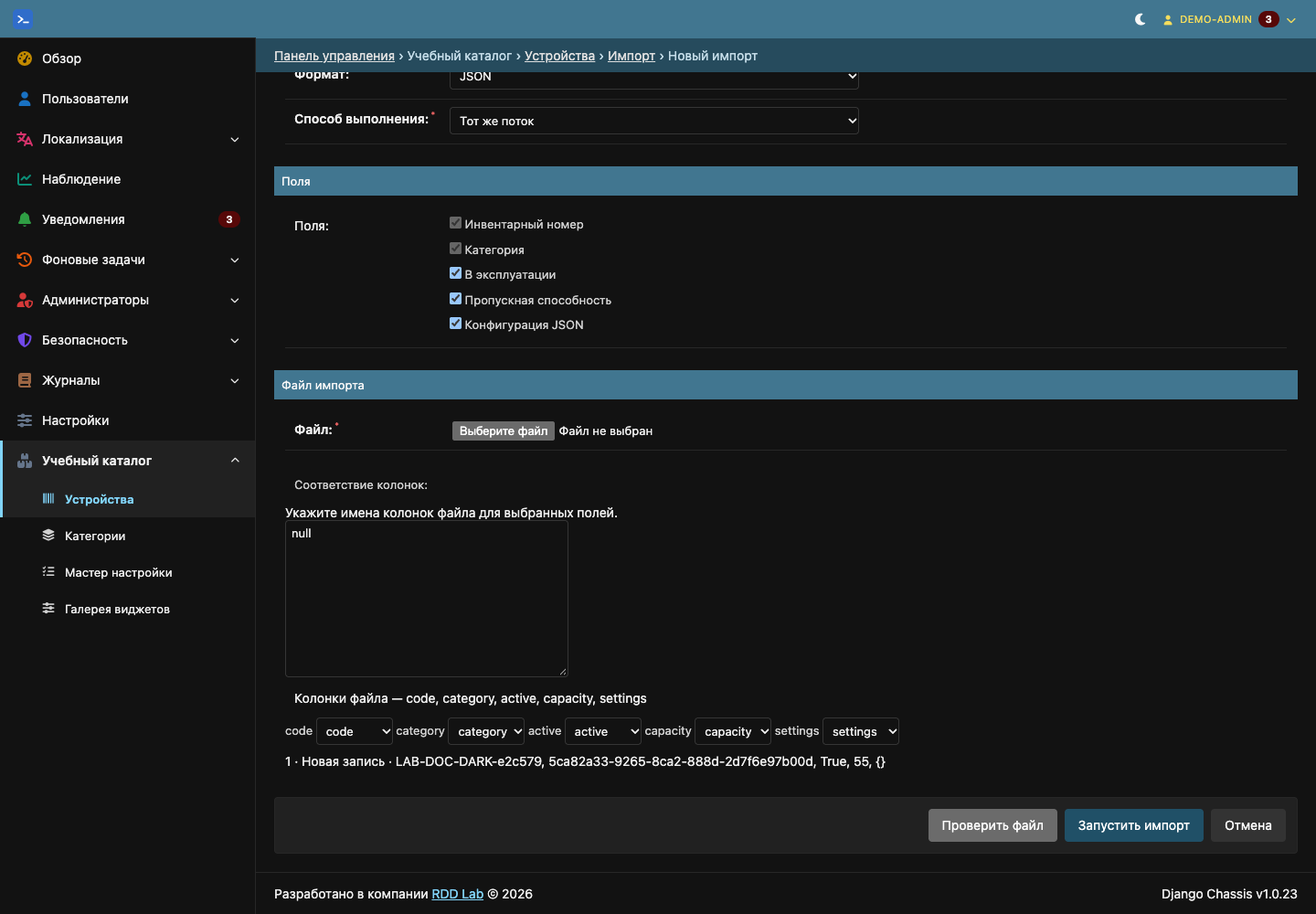
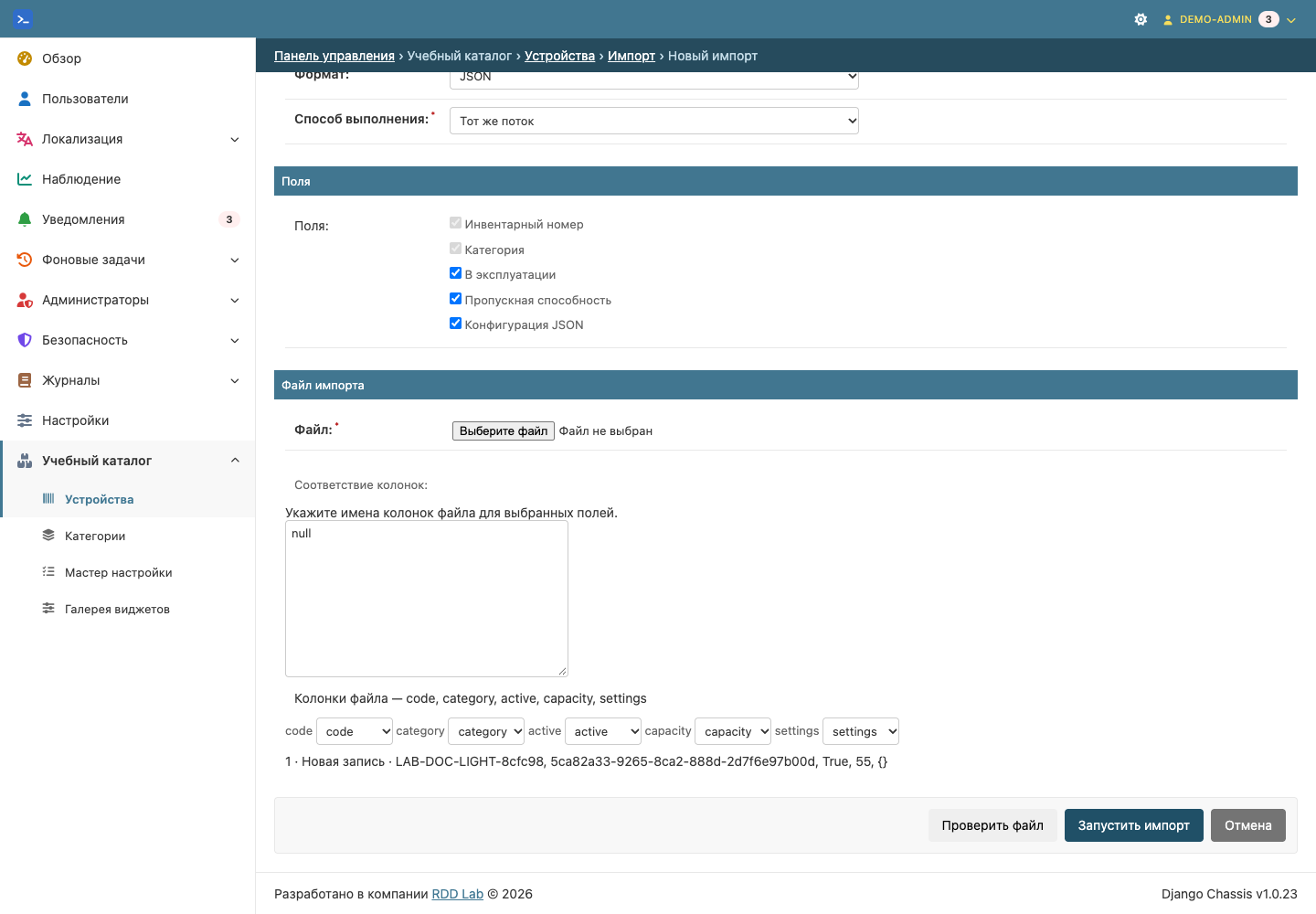
Drag the divider or use the arrow keys to compare themes.
Django Chassis 1.0.23 · training site with Russian UI
- The review shows detected columns, row errors and accepted or skipped examples.
- Match an incoming column to the destination field when the names differ.
- Submit the reviewed form to create an import operation.
How to add it
The form registered by ImportOption handles review and mapping. From the bootstrapped demo directory, generate a JSON fixture in .demo/ with the category of LAB-001. Its inventory_code column deliberately differs from the destination field code.
./run.sh shell -c "
import json
from pathlib import Path
from uuid import uuid4

from catalog_demo.models import Device

device = Device.objects.get(code='LAB-001')
suffix = uuid4().hex[:8]
rows = [{
    'inventory_code': f'LAB-DOC-{suffix}', 'category': str(device.serializable_value('category')),
    'active': True, 'capacity': 55, 'settings': '{}'
}]
fixture = Path(f'.demo/equipment-{suffix}.json')
fixture.write_text(json.dumps(rows), encoding='utf-8')
print(fixture)
"
In /admin/catalog_demo/device/import/new/, choose JSON, upload the printed file path and click Check file. In the mapping controls, set code to inventory_code and check again. Submit when the row is accepted.