Select a file and the destination fields
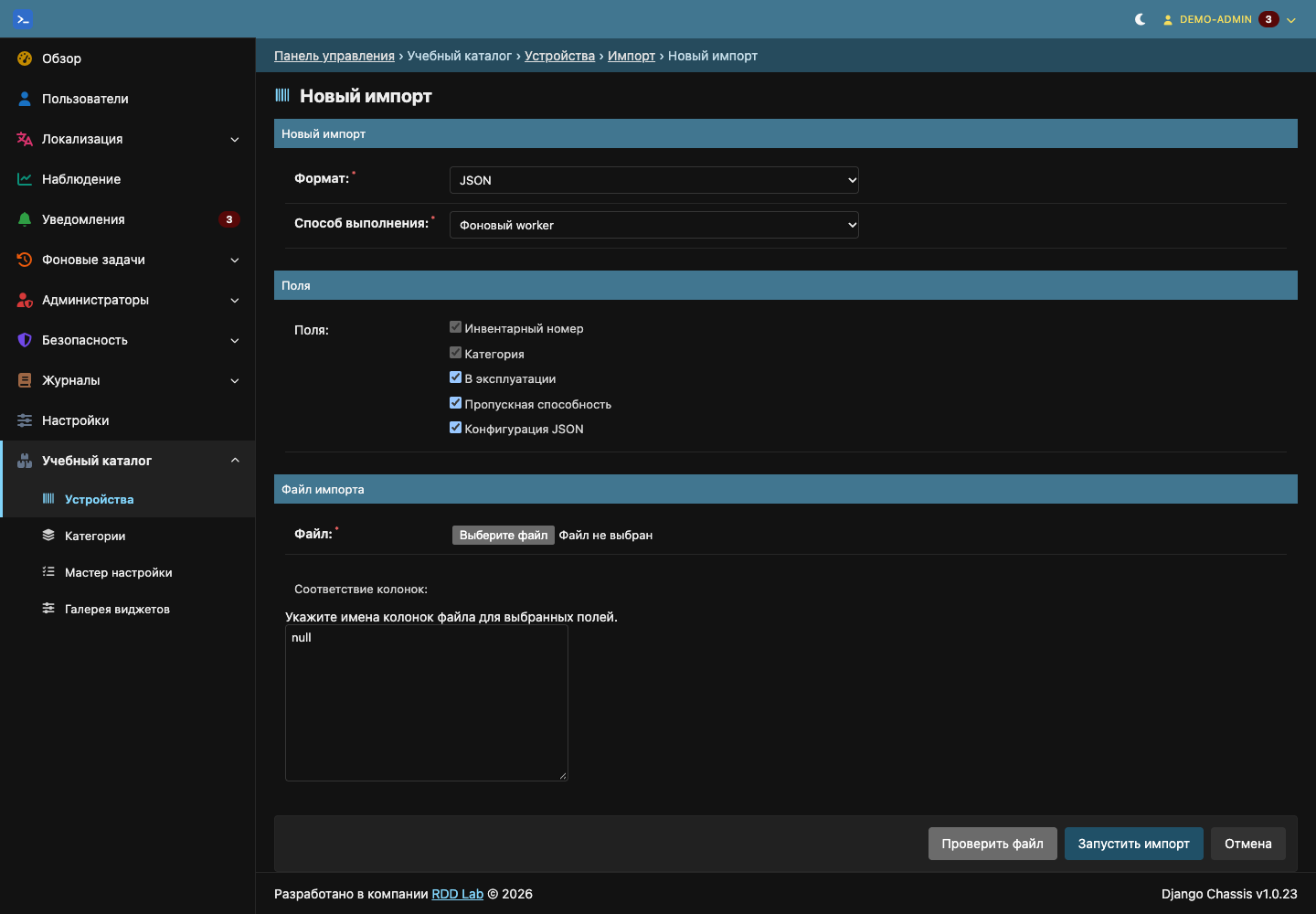
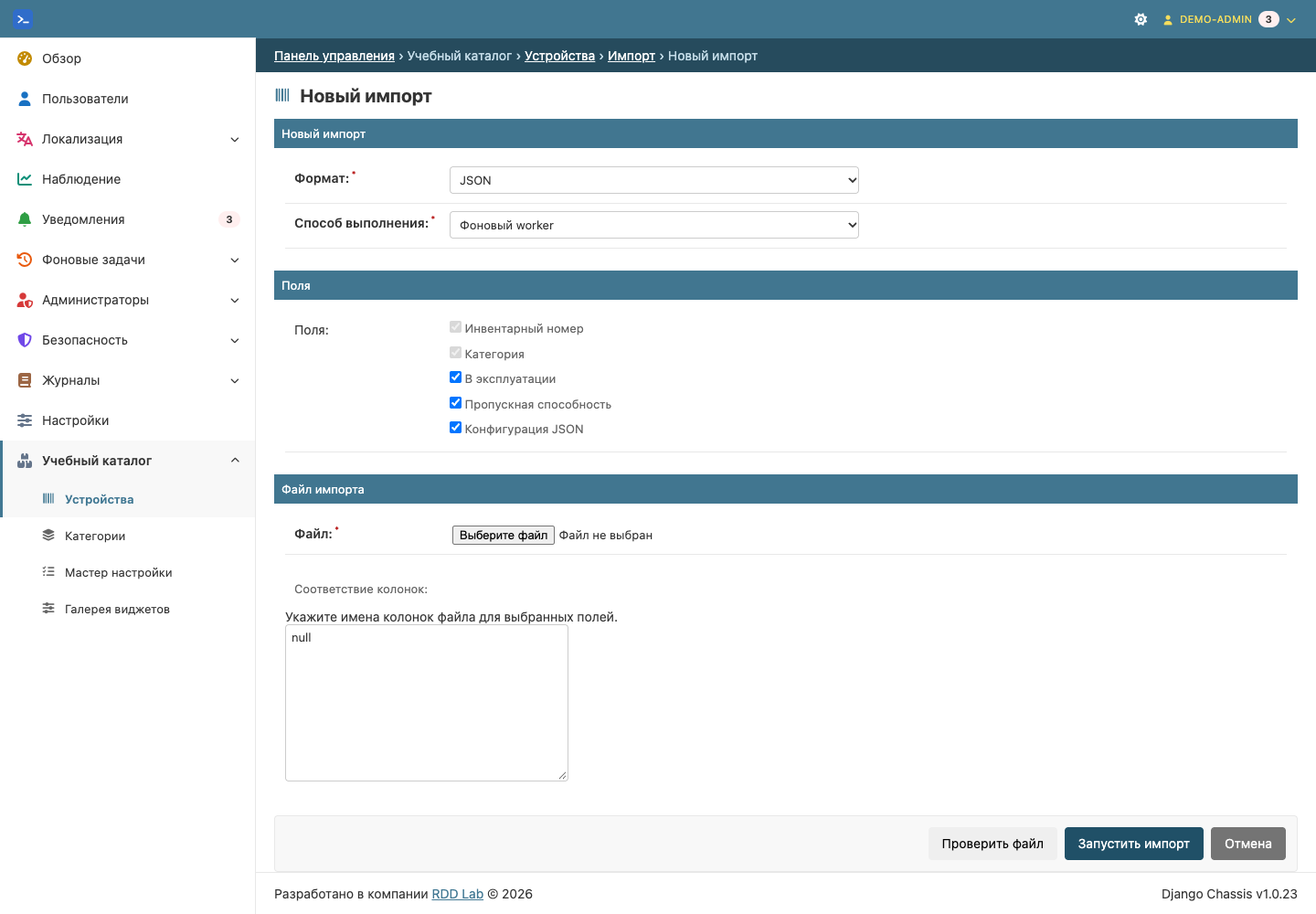
Drag the divider or use the arrow keys to compare themes.
Django Chassis 1.0.23 · training site with Russian UI
- Upload a JSON file with an array of device records.
- The ModelAdmin allowlist controls the fields available for import.
- Check file opens the validation step before import begins.
How to add it
Add this ImportOption to DeviceAdmin.options in catalog_demo/admins/device_admin.py. Declare both codenames on Device.Meta.permissions in catalog_demo/models/device.py and apply migrations. Give the uploader's group catalog_demo.view_device and both import grants. Register the admin on the Chassis site and configure private STORAGES['media'] in Django settings.
from django_chassis.enums import ImportFormat
from django_chassis.options import ImportOption

# DeviceAdmin.options entry
ImportOption(
    view_permission='view_device_import', upload_permission='upload_device_import',
    fields=['code', 'category', 'active', 'capacity', 'settings'],
    formats=[ImportFormat.JSON, ImportFormat.XML]
)
Open /admin/catalog_demo/device/import/new/. The next example generates a JSON file with a valid category ID for the seeded demo.