Read the completed import status
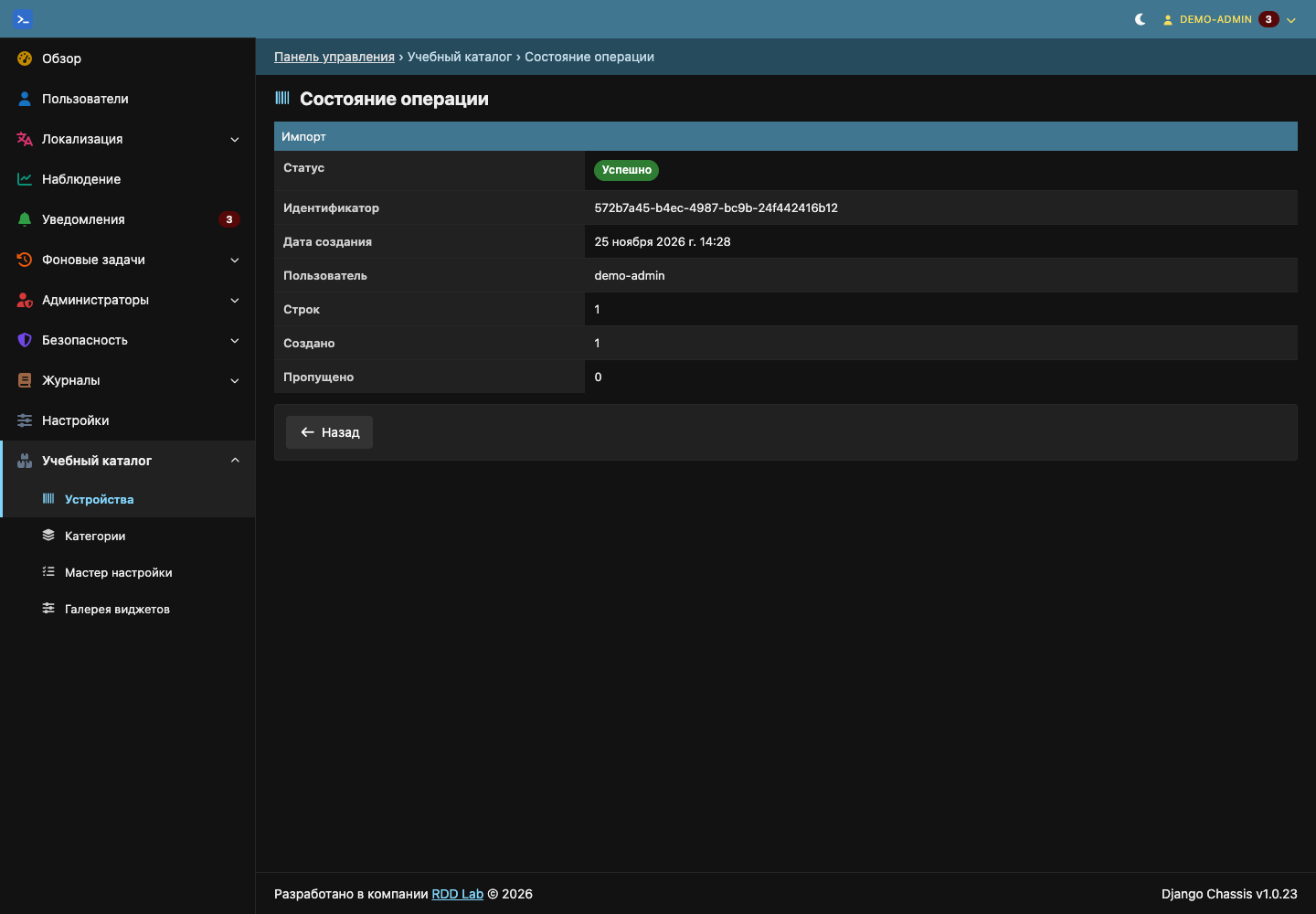
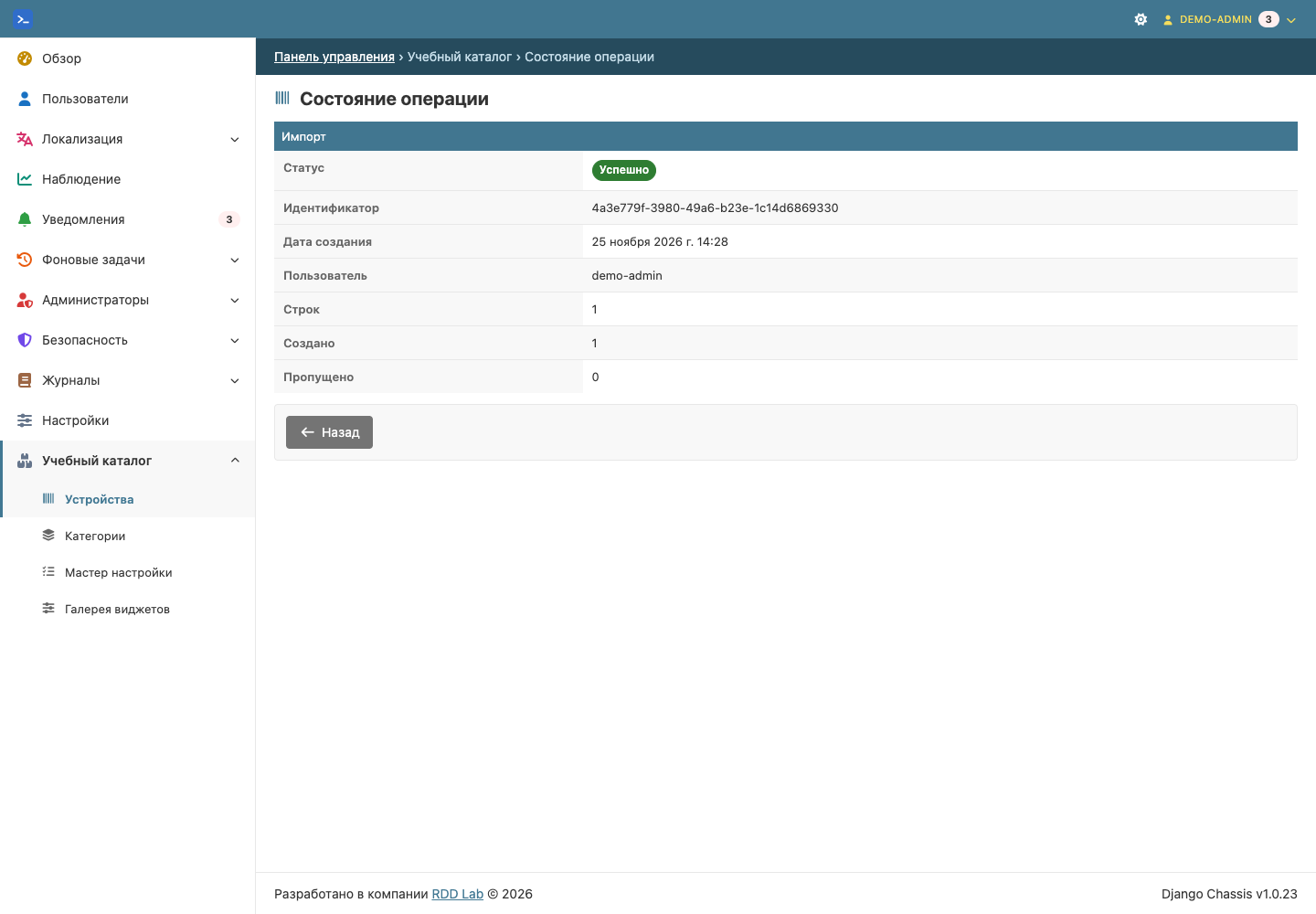
Drag the divider or use the arrow keys to compare themes.
Django Chassis 1.0.23 · training site with Russian UI
- The status page reports the outcome of the accepted operation.
- Created counts the rows saved by the import.
- Skipped counts the rows left out of the import.
How to add it
Choose synchronous execution on the new import form and submit a valid fixture with a fresh device code. Chassis redirects to its built-in status page. To reopen the latest operation created by demo-admin, run this in ./run.sh shell from the demo directory.
from django.urls import reverse
from django_chassis.models import ImportHistory

operation = ImportHistory.objects.filter(
    section='admin', content_type__app_label='catalog_demo', content_type__model='device',
    created_by__username='demo-admin'
).latest('created_at')
print(reverse('admin:catalog_demo_device_import_detail', kwargs={'history_id': operation.pk}))
print(operation.get_status_display(), operation.created_count, operation.skipped_count)
The generated path opens under the device and import view grants. A successful fresh one-row file reports one created row.