Date and time widgets
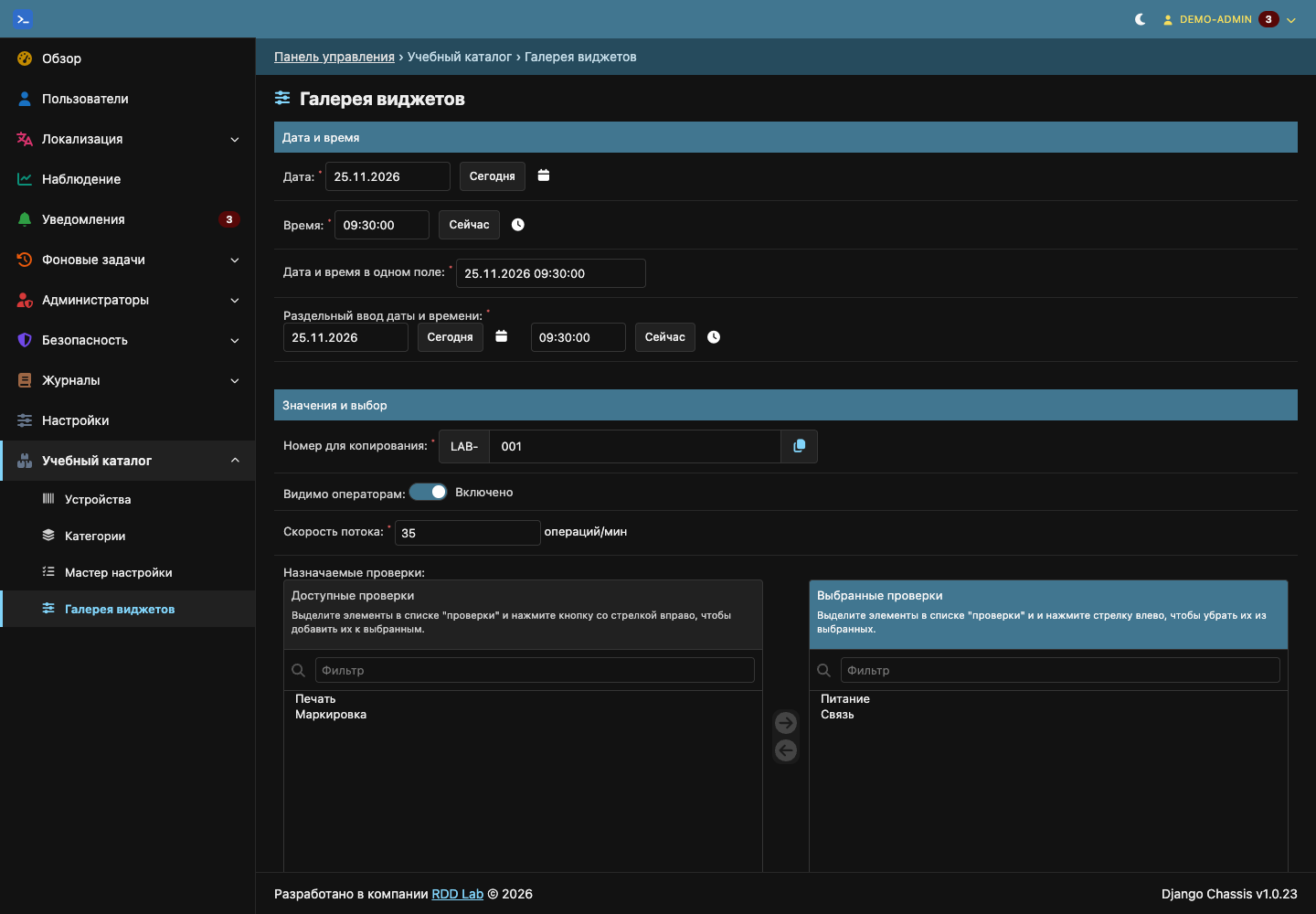
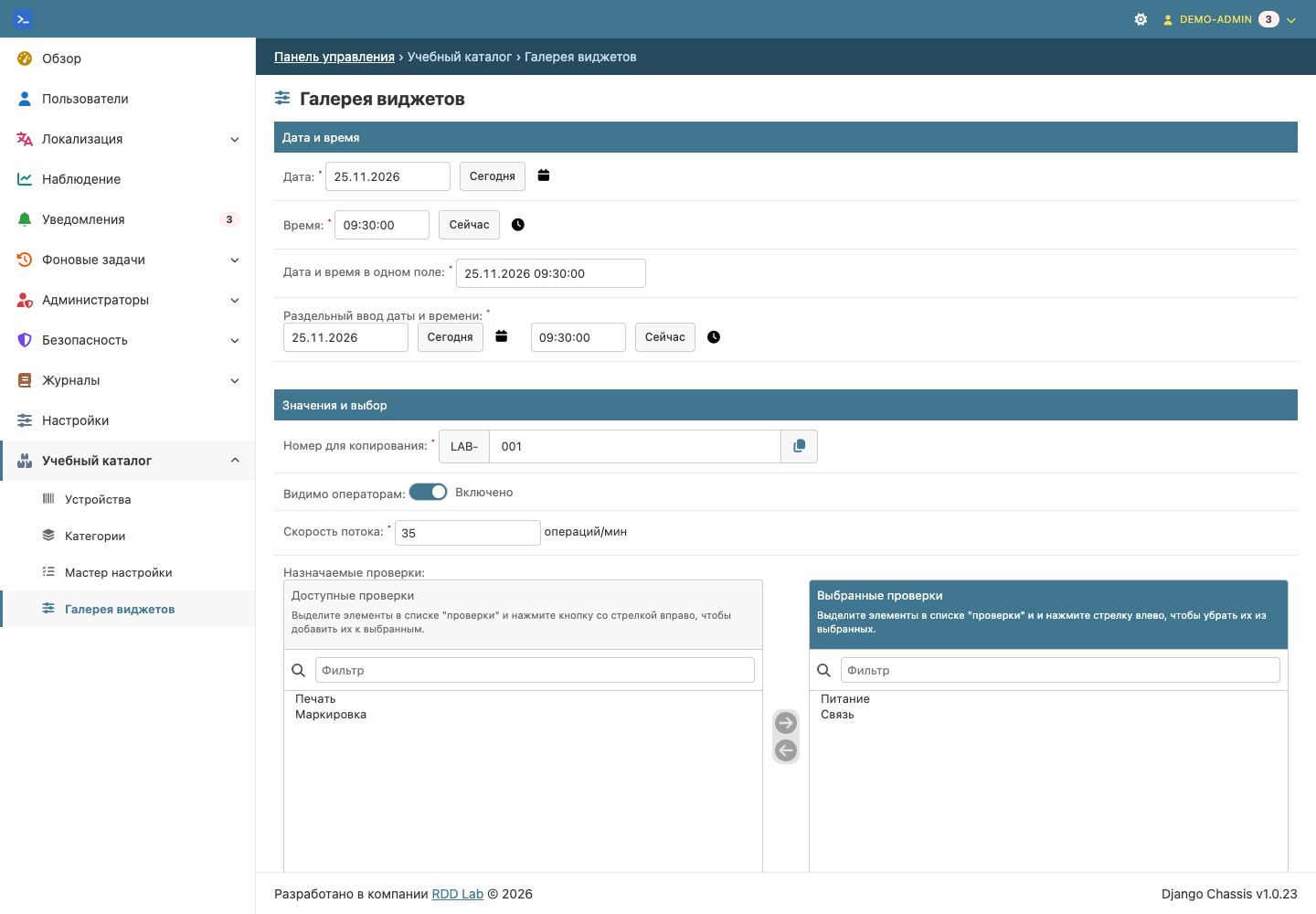
Drag the divider or use the arrow keys to compare themes.
Django Chassis 1.0.23 · training site with Russian UI
- Date and calendar shortcut
- Time and clock shortcut
- Combined date and time input
- Separate date and time inputs
How to add it
Declare the fields in catalog_demo/widget_gallery_form.py and pass the form to the Admin page context. In catalog_demo/templates/catalog_demo/widget_gallery.html, render the fields and include {{ gallery.media }} in extrahead with the Admin JavaScript catalog {% url 'admin:jsi18n' %}.
from django import forms
from django_chassis.widgets import (
    DATE_INPUT_FORMAT, DATETIME_INPUT_FORMAT, TIME_INPUT_FORMAT,
    DateInput, DateTimeInput, SplitDateTime, TimeInput,
)

class WidgetGalleryForm(forms.Form):
    opens_on = forms.DateField(widget=DateInput(), input_formats=[DATE_INPUT_FORMAT])
    opens_at = forms.TimeField(widget=TimeInput(), input_formats=[TIME_INPUT_FORMAT])
    scheduled_at = forms.DateTimeField(
        widget=DateTimeInput(), input_formats=[DATETIME_INPUT_FORMAT],
    )
    split_at = forms.SplitDateTimeField(
        widget=SplitDateTime(), input_date_formats=[DATE_INPUT_FORMAT],
        input_time_formats=[TIME_INPUT_FORMAT],
    )
On the gallery page, try the calendar and clock. The split input returns one combined value after validation.